
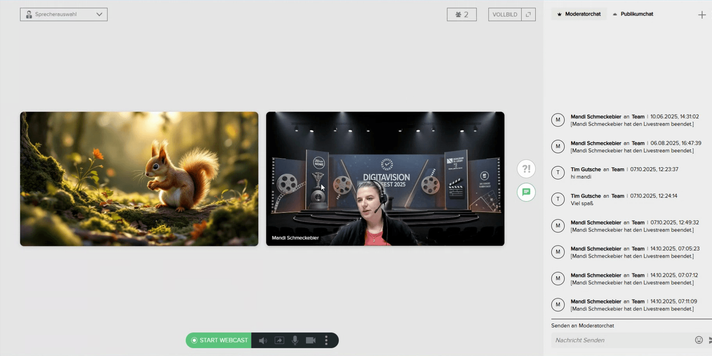
Elevate the professionalism and brand recognition of your webcasts by personalizing your speaker appearance. With custom backgrounds and overlays (lower thirds) in MEETYOO Show, you create visually compelling, on-brand content that maximizes your ROI – turning every stream into a reusable asset.
We guide you through configuring these elements in our intelligent webcast platform. From uploading your own images to generating AI-powered designs, you'll achieve TV-quality broadcasts backed by our 20+ years of expertise and enterprise security Made in Germany.
Ready to stand out? Follow these steps to navigate speaker customization and go live with confidence.
You can find an overview of additional branding options under Solutions > Branding.
1. Navigate to speaker customization
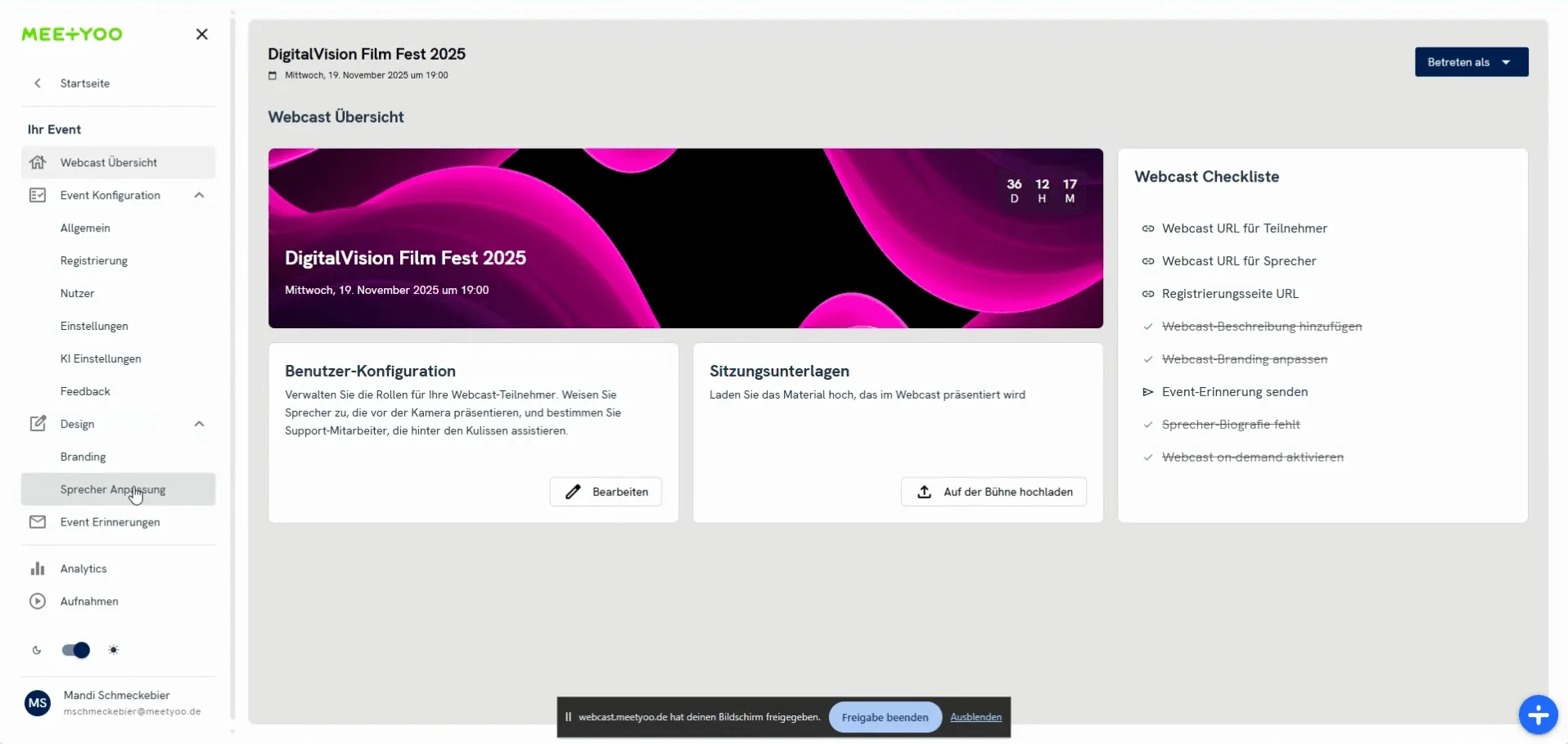
Find all key design settings for your speaker setup in the Design section of your event.
- Select Event Configuration from the left-hand menu.
- Click Design.
- Choose Speaker Customization.
Here, you'll see two subsections: Backgrounds and Lower Thirds.
2. Personalize your background
Your background frames your video feed and sets the event atmosphere or reinforces your branding.
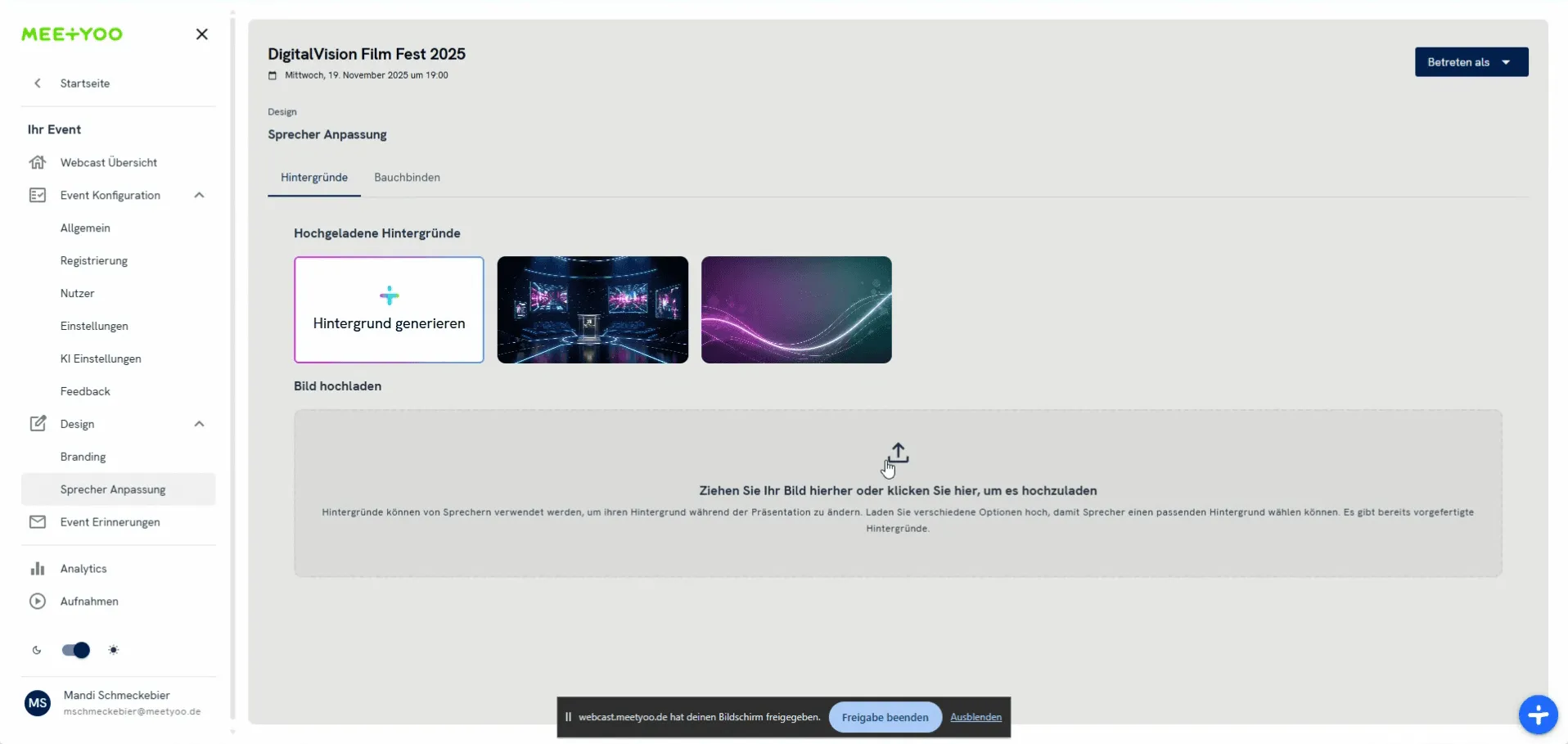
Option A: Upload a background image
Upload your own 16:9 images tailored to your webcast theme.
- Select the Backgrounds tab.
- In Upload Image, click or drag your image.
Option B: Generate AI backgrounds
For quick, thematic options, use our AI feature:
- Click Generate Background (plus icon).
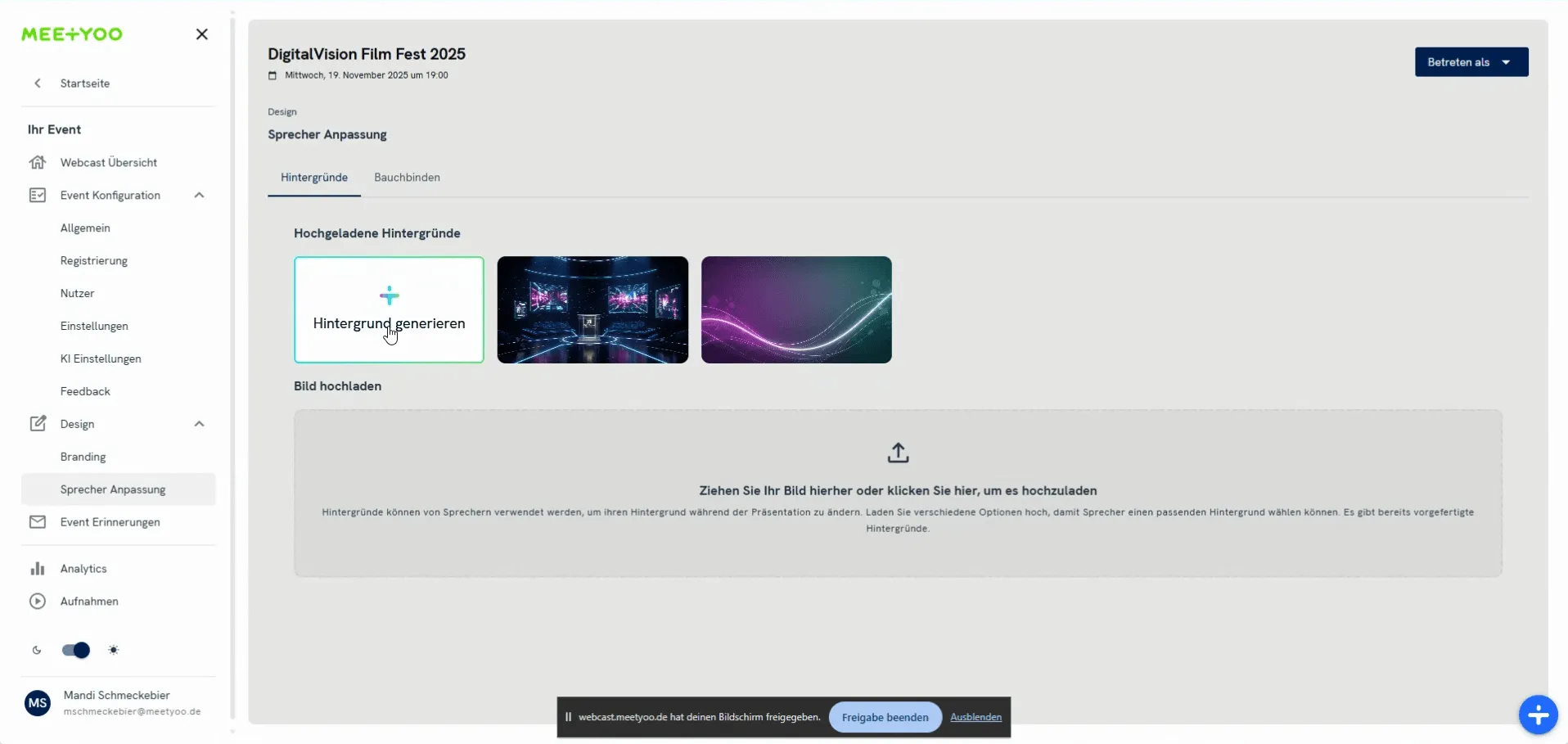
Screenshot of the AI background generation button. - In the popup:
- Enter a prompt: Describe your vision (e.g., "Modern stage for a film festival in blue and violet tones").
- Surprise me: Get AI suggestions based on your event description.
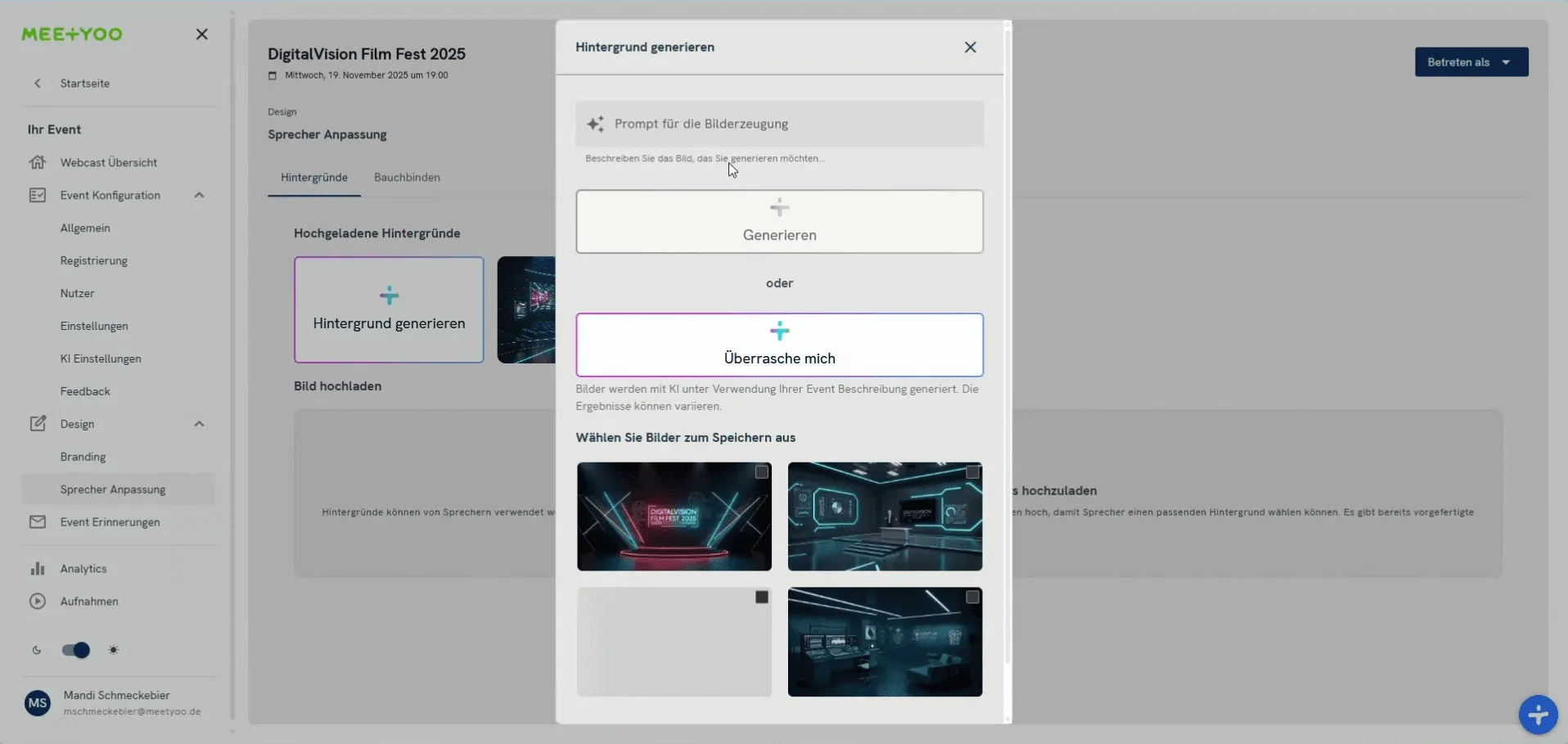
Screenshot of the AI prompt popup with input and 'Surprise me' option. - Select your favorites and click Save to Gallery.
Your images now appear in the gallery, ready for use – maximizing your content ROI with zero design hassle.
3. Create and use overlays (lower thirds)
Overlays, or lower thirds, layer graphics over your video (typically at the bottom) to display names, titles, or logos.
Important: Upload lower thirds in 16:9 format as PNG with a transparent background outside the display area. Only the visible section should have content.
Upload an overlay
- Switch to the Lower Thirds tab.
- Click + Add Overlay.
- Enter a clear Overlay Name (e.g., "Mandi Schmeckebier Lower Third").
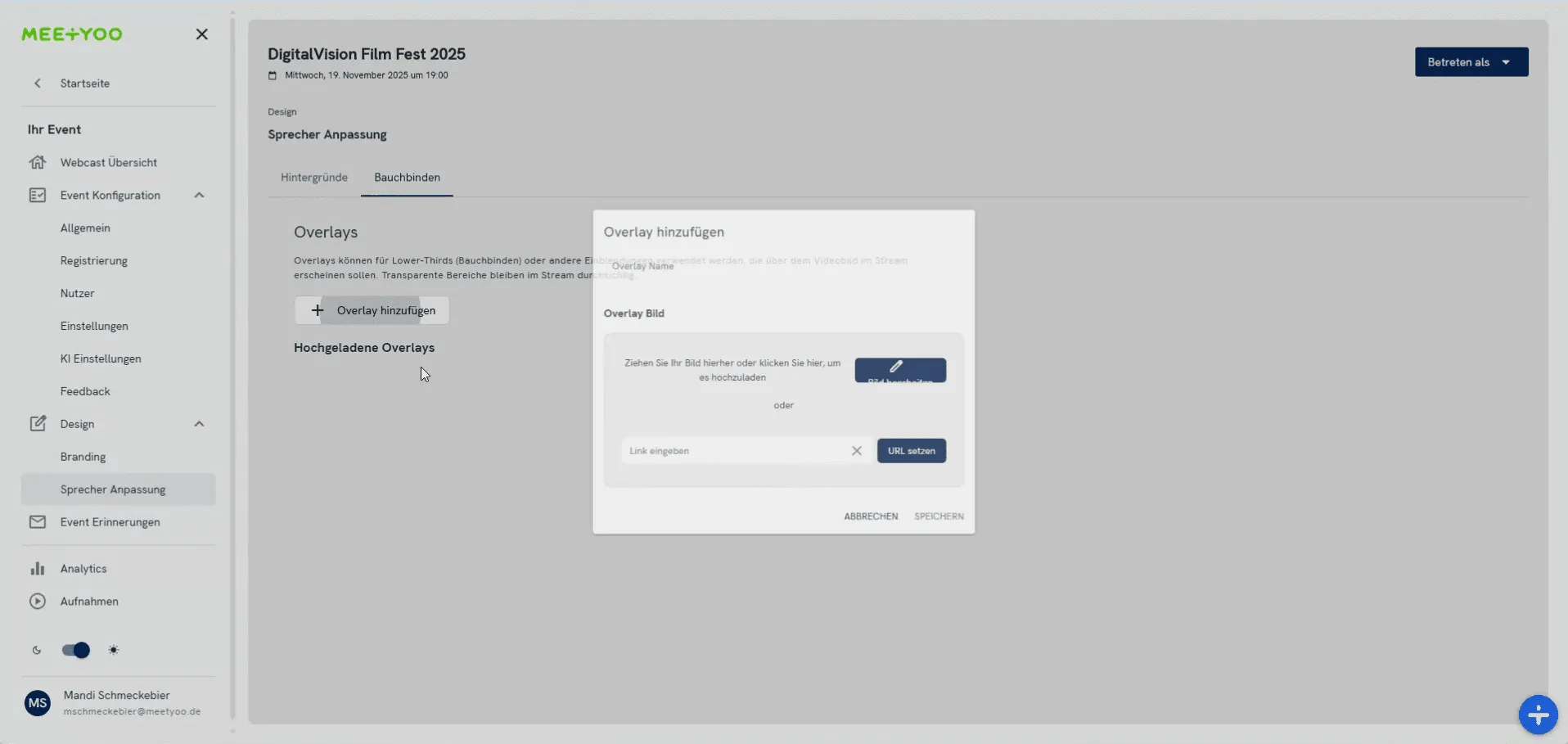
Screenshot of the add overlay popup. - Upload your 16:9 image with transparency in Overlay Image.
- Click SAVE.
Your overlay lists with others. Create as many as needed for different speakers.
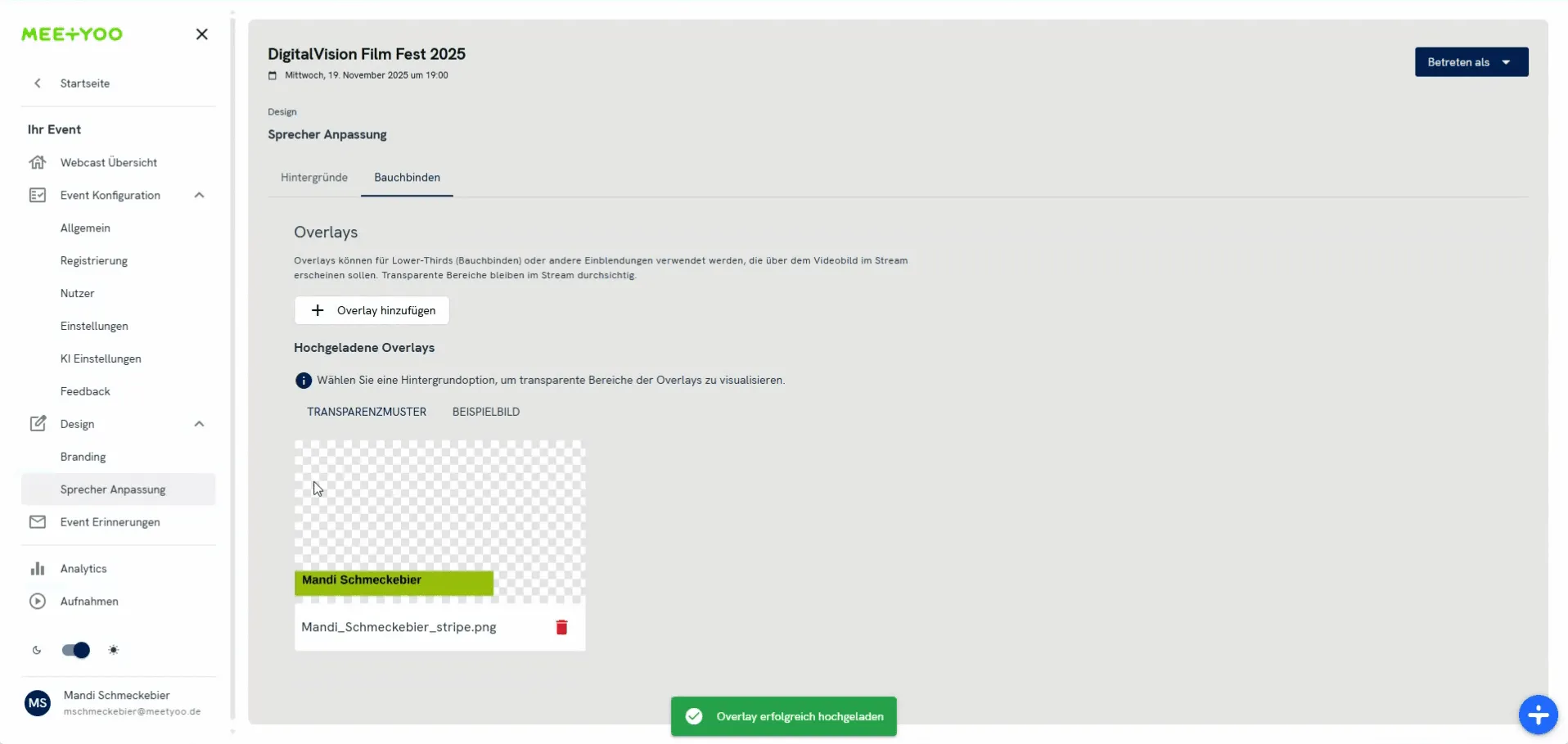
4. Activate your design live
Once in the webcast room with your camera on, enable your elements.
- Click the three dots (or camera/mic icon) at the bottom.
- Select Set Background.
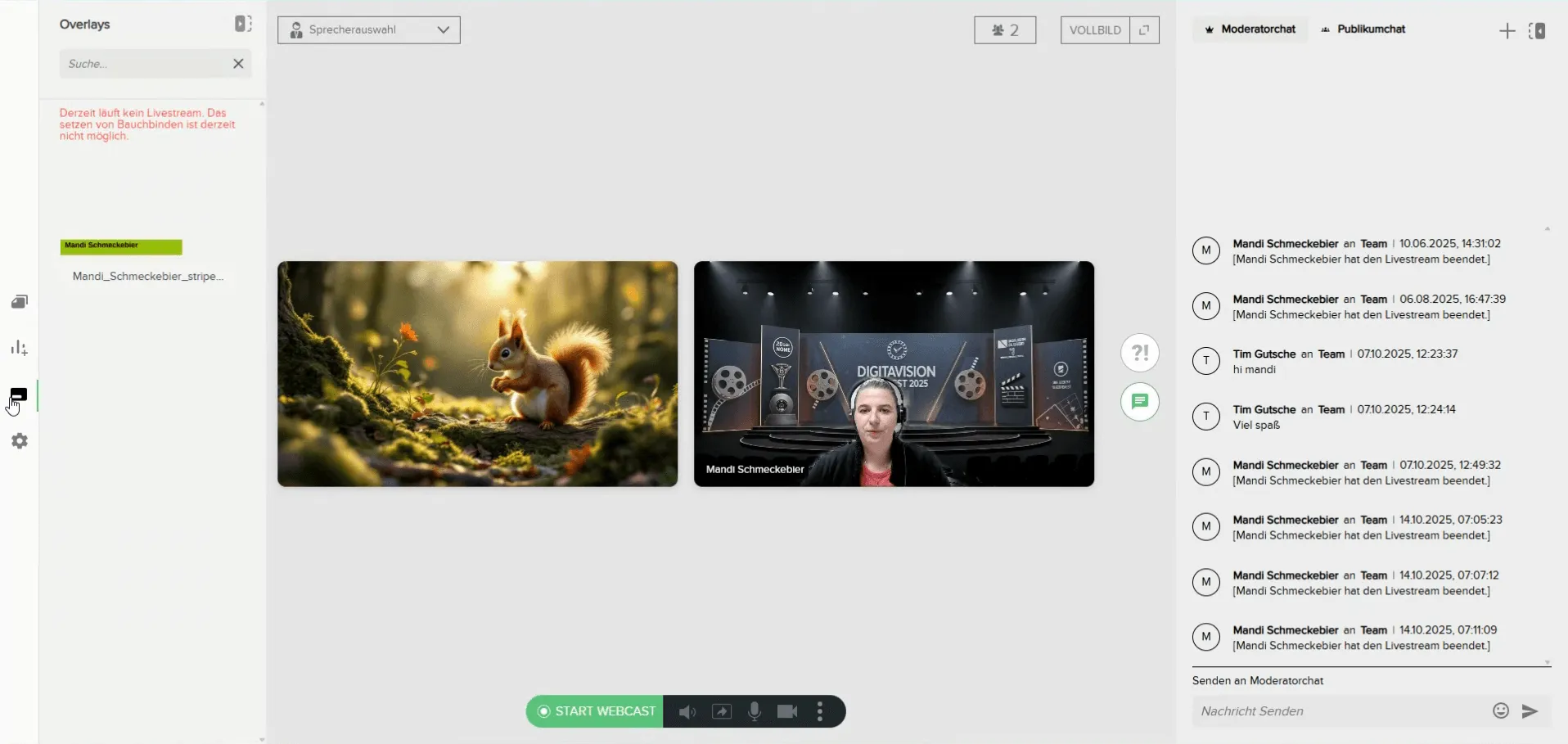
Screenshot of webcam window with overlay, background, and 'Set Background' option. - Activate background:
- Choose from your gallery in the popup.
- It applies instantly.
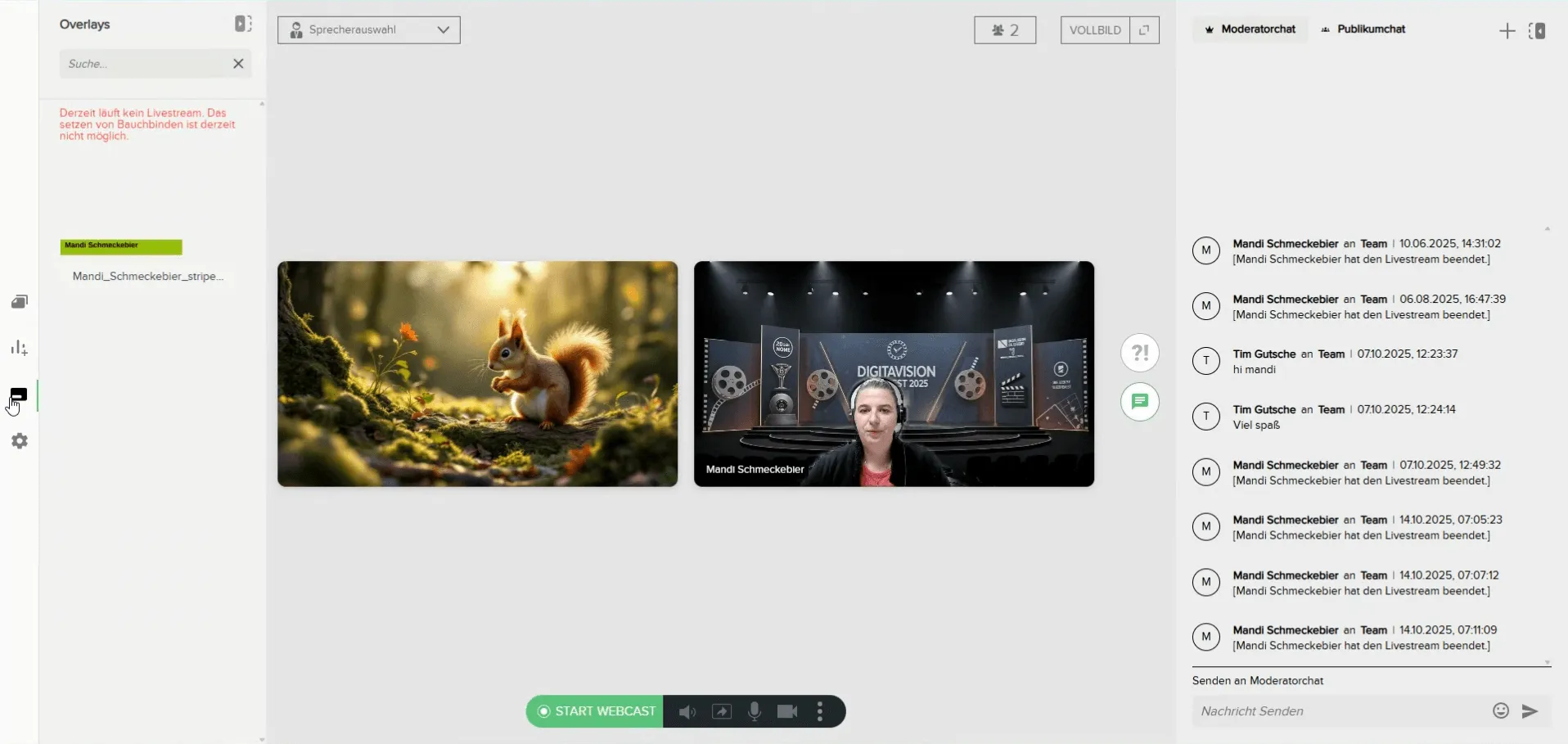
Screenshot of background selection popup with speaker preview. - Activate overlay:
- Click the overlay icon (three stacked rectangles) in the toolbar.
- Select and toggle your lower third on/off.
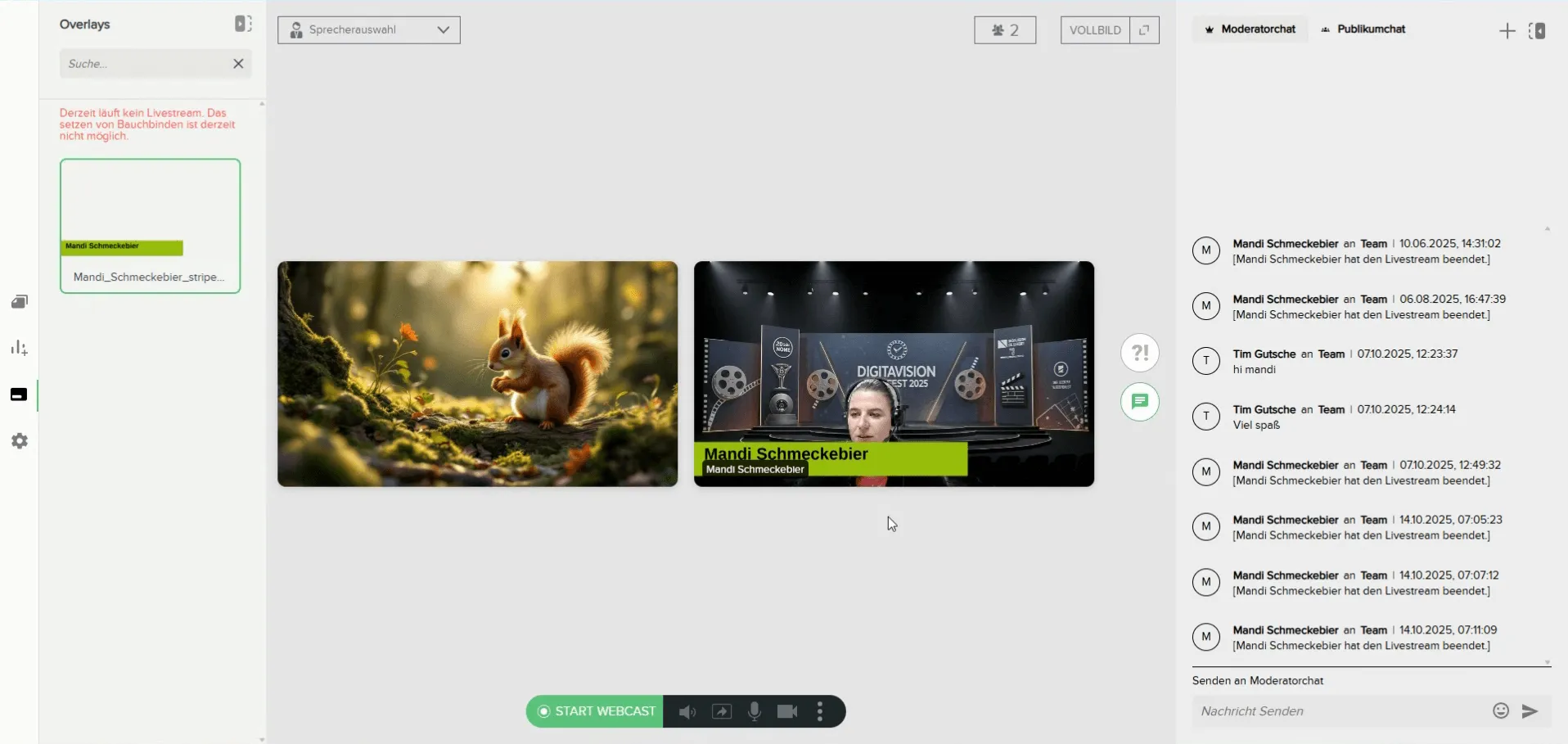
Screenshot of live view with active overlay and background.
Pro Tip: Always test beforehand!
Run a tech rehearsal pre-event. Check outfit-background harmony and overlay positioning for flawless, brand-aligned delivery.
With targeted backgrounds and lower thirds, you deliver professional webcasts that strengthen your brand and elevate visual quality – all powered by MEETYOO Show's AI features for decisive moments.


